- Abid Alii
- 2026/11/25
- 0 Comments
- 0 Likes
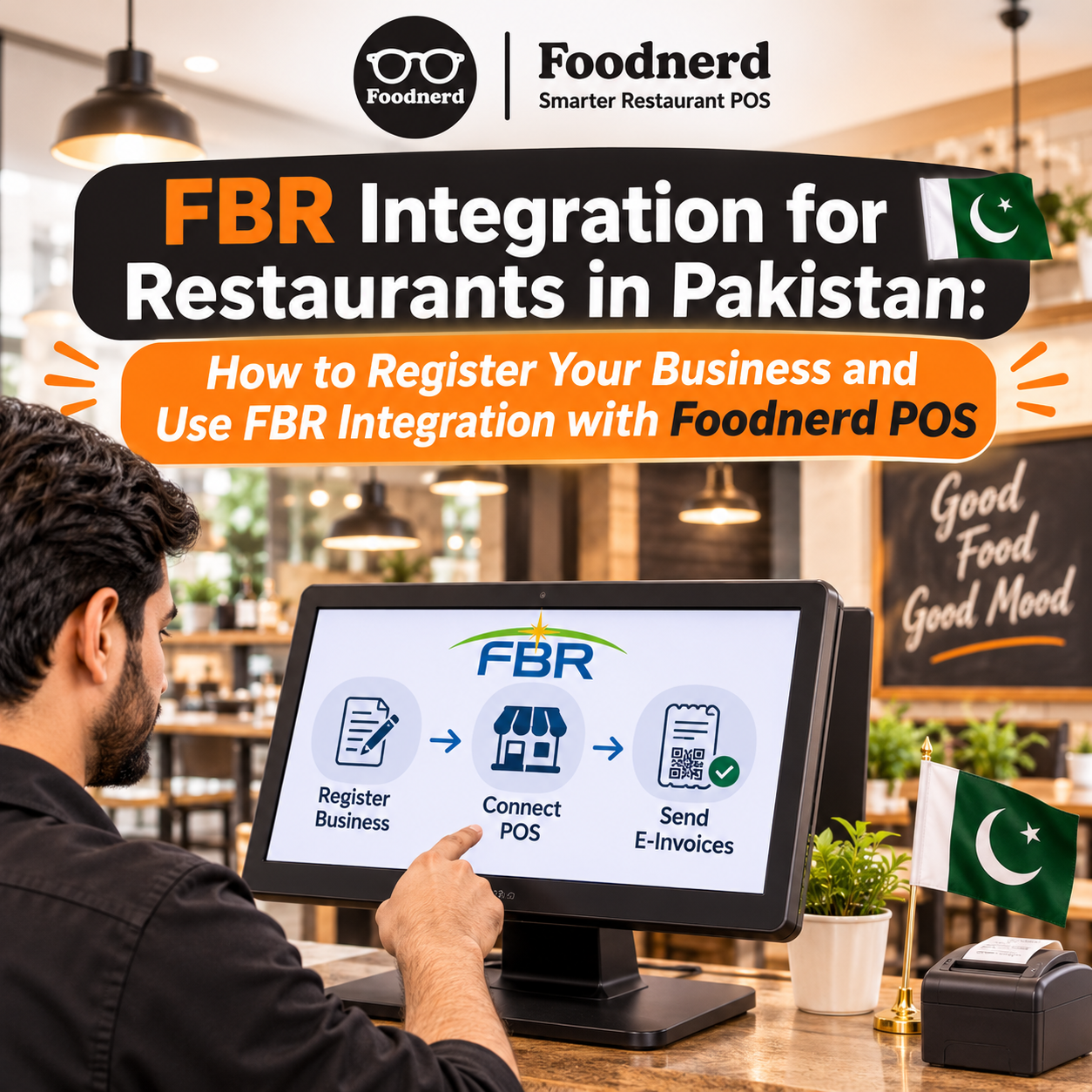
A restaurant’s FBR setup involves more than entering a tax number in its POS. You first need to understand which authority regulates your business, get the right taxpayer registration, and if you fall under FBR’s electronic invoicing rules complete the required Digital Invoicing and integration steps.
Foodnerd POS has FBR invoice-submission workflows, but the right setup depends on your registration and approved integration profile. Use this guide to prepare, then confirm your requirements with your tax adviser, FBR and your licensed integrator before going live.
NTN, STRN, IRIS and Digital Invoicing: What’s the Difference?
These terms refer to different parts of a business’s tax setup:
- NTN (National Tax Number): A taxpayer identifier for income-tax records. FBR generally uses an individual’s 13-digit CNIC as their registration number. An AOP or company receives a separate, seven-digit registration number.
- STRN (Sales Tax Registration Number): Identifies a business registered for sales tax. Having an NTN does not, by itself, mean the business is registered for sales tax. FBR says a supplier recovering federal sales tax must be registered and show its STRN on the invoice.
- IRIS: FBR’s online tax portal. Taxpayers use it for services such as registration and tax filings. Having IRIS access does not automatically connect a POS to FBR.
- FBR Digital Invoicing: A process for creating structured electronic sales tax invoices and transmitting them to FBR. A scanned or emailed copy of a paper receipt is not the same thing.
FBR’s taxpayer guidance explains the registration numbers used for individuals, AOPs and companies. Its sales-tax guidance also distinguishes an STRN from an NTN. FBR income-tax registration, FBR sales-tax clarification
Does Every Restaurant Need FBR Digital Invoicing?
Do not assume every restaurant has the same obligation. Restaurant services may fall under a provincial revenue authority depending on location and applicable law: PRA in Punjab, SRB in Sindh, KPRA in Khyber Pakhtunkhwa, or BRA in Balochistan. Those systems are separate from FBR’s federal Digital Invoicing system.
For federal sales-tax-registered persons, FBR’s later SRO 1852(I)/2025 superseded an earlier rollout notice and set category-specific registration, testing and invoicing dates. The final category’s invoicing date was 31 December 2025. Since those dates have passed, a federally registered restaurant should check its current status and any extension with FBR or its licensed integrator. FBR’s FAQ still refers to the earlier notice, so use the later SRO when checking the rollout schedule. FBR Digital Invoicing FAQs
A restaurant that is not registered for federal sales tax may still have provincial service-tax or other tax obligations. Ask an accountant which registrations apply to your legal structure, business activity and locations.
Prepare Your Registration Information
FBR’s requirements vary by legal structure. Treat this as a preparation checklist; not every item applies to every applicant.
Individual or sole proprietor
- CNIC and a mobile number with a SIM registered to that CNIC
- Personal email address
- Personal bank account maintenance certificate
- Business name, activity and address, if you operate a business
- Evidence of ownership or tenancy for business premises, if applicable
- A recent paid utility bill for the premises, where required
AOP or partnership
- Partnership deed and Registrar of Firms certificate, where applicable
- CNIC details for all partners
- Authorization letter signed by the partners
- AOP bank account certificate
- Business email, contact details and address
- Premises evidence and a recent paid utility bill, if applicable
Company
- Certificate of incorporation
- CNIC details for directors
- Company authorization for the principal officer
- Company bank account certificate
- Company email and contact details
- Premises evidence and a recent paid utility bill, if applicable
FBR’s current income-tax registration guidance lists different routes and documents for individuals, AOPs and companies. Federal sales-tax registration can require additional business and branch details, such as bank information, premises evidence and utility information. Check the applicable list before applying. FBR registration requirements, FBR sales-tax registration procedure
How to Register Through IRIS
- Open the official IRIS portal. Start at iris.fbr.gov.pk or use the registration link on FBR’s website.
- Choose the route for your legal structure. FBR currently lists online income-tax registration for individuals. AOPs and companies are directed to a Tax House facilitation counter for registration.
- Enter the requested taxpayer and business information. Prepare your identity, contact, bank and premises details as applicable to your business.
- Submit the application and follow FBR’s instructions. FBR will provide registration details and access credentials through its process.
- Access an existing registration instead of making a duplicate. If you already have an NTN or registration number but lack IRIS credentials, use FBR’s e-enrollment or account-access guidance for registered persons.
The IRIS registration process gives you access to FBR services; it does not finish Digital Invoicing or POS integration.
Check Sales-Tax Registration and Business Records
Income-tax registration and sales-tax registration are separate. Before connecting a POS, confirm whether your business needs federal sales-tax registration, provincial registration for restaurant services, or both.
Check that your legal business name, NTN, STRN where applicable, business address and registration type match official records. For multiple branches, confirm how each outlet must be registered and whether it needs its own POS identifier. Don’t enter an NTN in a field intended for an STRN or POS identifier.
Register for FBR Digital Invoicing
Use the current FBR/PRAL manual for the IRIS steps; labels and screens can change.
- Log in to IRIS using your existing taxpayer credentials.
- Open Digital Invoicing using the route shown in the current manual.
- Select an integration mode. The manual lists API Integration and Manual Invoice Generation. A restaurant using Foodnerd POS generally needs the API route so invoices can be created from the POS workflow.
- Choose a licensed integrator. Select PRAL or another integrator shown on FBR’s current approved list. The list can change, so verify the license before proceeding. FBR’s manual describes PRAL’s integration and sandbox service as free of cost; other integrators may charge for their services.
- Provide technical onboarding details. The manual includes technical contact information, software provider, software type and version, and support-account details. It may also ask for hosting and IP-whitelisting information. Use the official onboarding process and keep support credentials separate from your IRIS login.
- Complete sandbox testing. Submit the scenario-based test invoices required for your business type and sector. Sandbox invoices are for testing; they are not production sales invoices.
- Move to production after approval. Use the production environment and credentials provided after the required tests. Keep sandbox and production credentials separate, and never include tokens in screenshots, blog posts or public support messages.
The FBR API documentation describes separate sandbox and production endpoints and the invoice fields and validation responses. Follow the current documentation and instructions from your selected integrator.
Configure Foodnerd POS
Foodnerd’s reviewed POS settings are configured for a restaurant location and include an FBR POS registration identifier, API token, taxpayer NTN and an API type selection. The form does not replace IRIS registration or licensed-integrator onboarding, and the reviewed FBR settings do not show a separate STRN field or an integrator-selection field.
Before entering settings, prepare:
- Your legal business name and outlet address
- NTN and STRN, where applicable
- The FBR POS registration identifier and production token for the approved setup
- The correct API type for your account
- Branch details and tax configuration
- Correct tax categories and item details for menu items and fees
Foodnerd uses configured tax rates and order details to prepare invoice lines. Review the tax settings, item classifications and customer details with your accountant and integrator; a POS setting cannot determine whether a rate or classification is legally correct.
What Happens When a Restaurant Order Is Completed?
In the standard order-completion flow, Foodnerd prepares invoice information from the order, including its items, fees, applicable tax values and customer details. The FBR reporting code is shared across order types, so dine-in, takeaway and delivery orders can use the same basic submission flow. Test each channel you use because payment timing and available buyer information can differ.
Foodnerd has separate B2C and B2B code paths. Its B2B path is configured for FBR’s Digital Invoicing API v1.12 sandbox and production endpoints; its B2C path uses a separate FBR POS submission endpoint. Confirm with Foodnerd support and your selected integrator which profile is approved and enabled for your restaurant.
When Foodnerd recognizes a successful response, its code is designed to save the returned invoice number and response with the tax invoice. Receipt templates support printing an FBR invoice number and QR/barcode. Confirm the invoice in FBR’s invoice dashboard as part of testing: a local order receipt alone does not prove FBR accepted the invoice.
Common Registration and Invoice Problems
- NTN or STRN mismatch: Check that you entered the correct identifier in the correct field and that the legal name and registration type match FBR records.
- Buyer registration mismatch: Confirm the buyer’s number, name and registered/unregistered status. A basic status lookup does not guarantee that every buyer field is valid for a particular invoice.
- Buyer not registered for sales tax: Recheck the buyer details and transaction type. Do not declare a buyer as registered based only on an unrelated verification result.
- Invalid rate, HS code, unit or sale type: Review item classifications, tax categories, rates and line totals. FBR’s technical documentation lists field-level validation errors; ask your accountant or integrator about the exact response.
- Authentication error: Check that the token matches the selected environment and integration profile. Do not use sandbox credentials for production.
- Rejected or timed-out invoice: Review the FBR response and invoice dashboard before trying again. Avoid blind resubmission; contact the integrator or Foodnerd support if the result is unclear.
FBR’s API documentation distinguishes HTTP responses from invoice and line-item validation results. An HTTP success alone is not enough; check the actual invoice validation status. FBR Digital Invoicing API Technical Documentation
Test Before Going Live
Before processing real sales, verify your taxpayer and outlet details, approved integrator, API type and environment. In sandbox, test representative orders: different tax categories, discounts, service fees and customer types, as well as dine-in, takeaway and delivery.
For every test, check the FBR validation response, invoice number, saved POS status and printed receipt. After production activation, verify an invoice through FBR’s service and confirm the QR code and number appear as expected. If an order timed out, check FBR’s dashboard before resubmitting.
Benefits of FBR Integration with Foodnerd POS
An integrated workflow can reduce manual invoice entry, connect restaurant billing with digital invoice submission and make order and invoice records easier to review. It can also help staff follow a more consistent process across outlets.
Integration does not automatically guarantee tax compliance. The restaurant remains responsible for registration, tax configuration, correct invoice data and meeting its applicable filing and record-keeping obligations.
Frequently Asked Questions
1. What is FBR registration?
It is enrollment with FBR for the tax registrations that apply to your legal structure and activities. Income-tax registration gives you an NTN or registration number and IRIS access.
2. What is the difference between NTN and STRN?
An NTN identifies a taxpayer for income-tax purposes. An STRN identifies a business registered for sales tax; having an NTN does not automatically mean you have an STRN.
3. Can I use Foodnerd POS without an FBR account?
You can use POS functions that do not depend on FBR submission. To send invoices through an FBR integration, your business must have the applicable registration and completed integration setup.
4. How do I create an FBR account through IRIS?
Individuals can follow FBR’s online registration guidance. AOPs and companies should follow FBR’s current Tax House facilitation process. Existing taxpayers should recover or enroll their current account rather than create a duplicate.
5. What documents are needed for FBR registration?
Common items include identity and contact details, bank documentation and business-premises evidence. AOPs and companies also need entity and authorization documents. Check FBR’s list for your specific registration.
6. Is Digital Invoicing registration different from NTN registration?
Yes. NTN registration identifies your taxpayer record. Digital Invoicing setup connects an eligible taxpayer’s invoice system to FBR through an approved integration process.
7. What is a licensed integrator?
It is an entity licensed by FBR to help connect a taxpayer’s invoicing system to FBR’s computerized system.
8. Can a restaurant choose PRAL?
PRAL is listed as an option in FBR’s Digital Invoicing process. You can also check FBR’s current list for other approved integrators.
9. What is sandbox testing?
It is a test environment for submitting sample invoices and checking the integration before production use.
10. What is the difference between sandbox and production credentials?
Sandbox credentials are for tests. Production credentials are for real invoice submissions. Keep the credentials and environments separate.
11. How does Foodnerd POS send invoices to FBR?
When configured for FBR, Foodnerd prepares invoice data from a completed order and submits it through the selected API path. Confirm acceptance in FBR’s invoice dashboard.
12. What happens if FBR rejects an invoice?
Review the response and its validation details, correct the relevant registration or invoice data, and contact your accountant or integrator if the reason is unclear.
13. Why can a buyer appear registered but still cause a mismatch error?
FBR may validate the registration number, declared registration type and invoice details together. A general status check does not guarantee those fields match the invoice rules.
14. Does every restaurant need FBR integration?
Not necessarily. It depends on federal sales-tax registration, the business activity and current FBR notifications. Provincial service-tax requirements may apply separately.
15. Is FBR integration the same as PRA, SRB or KPRA integration?
No. FBR Digital Invoicing is a federal system. Provincial authorities administer their own tax rules and systems for applicable services. Verify requirements with the authority responsible for your location.
Conclusion
FBR integration involves more than entering an NTN into a POS. Restaurants need to confirm their tax registrations, complete any required Digital Invoicing and integrator onboarding, and check that outlet, item and tax information is correct.
Foodnerd POS can support the restaurant billing and invoice-submission workflow for its configured FBR profile. Before going live, confirm the approved integration route with your integrator and verify accepted invoices in FBR’s system.
Recent Blogs
FBR Integration for Restaurants in Pakistan: How to Register Your Business and Use FBR Integration with Foodnerd POS
A restaurant’s FBR setup involves more than entering a tax number in its POS. You first need to understand which authority regulates your business, get the right taxpayer registration, and if you f...
How Caller ID Helps Restaurants Handle Phone Orders Faster
Restaurants handle a steady stream of phone calls: takeaway orders, delivery requests, questions about menu items, updates on existing orders and general inquiries. During a busy service, asking ev...

Join the conversation
Comments are reviewed before they appear.
