- Umair Assad
- 2026/01/06
- 0 Comments
- 0 Likes
Efficient delivery operations are the backbone of a successful modern restaurant. When your delivery zones are accurate and your pricing is strategic, you protect your profit margins and ensure a seamless experience for your customers. Conversely, poorly configured delivery settings can lead to drivers traveling too far for too little profit, or customers being frustrated by unclear service boundaries.
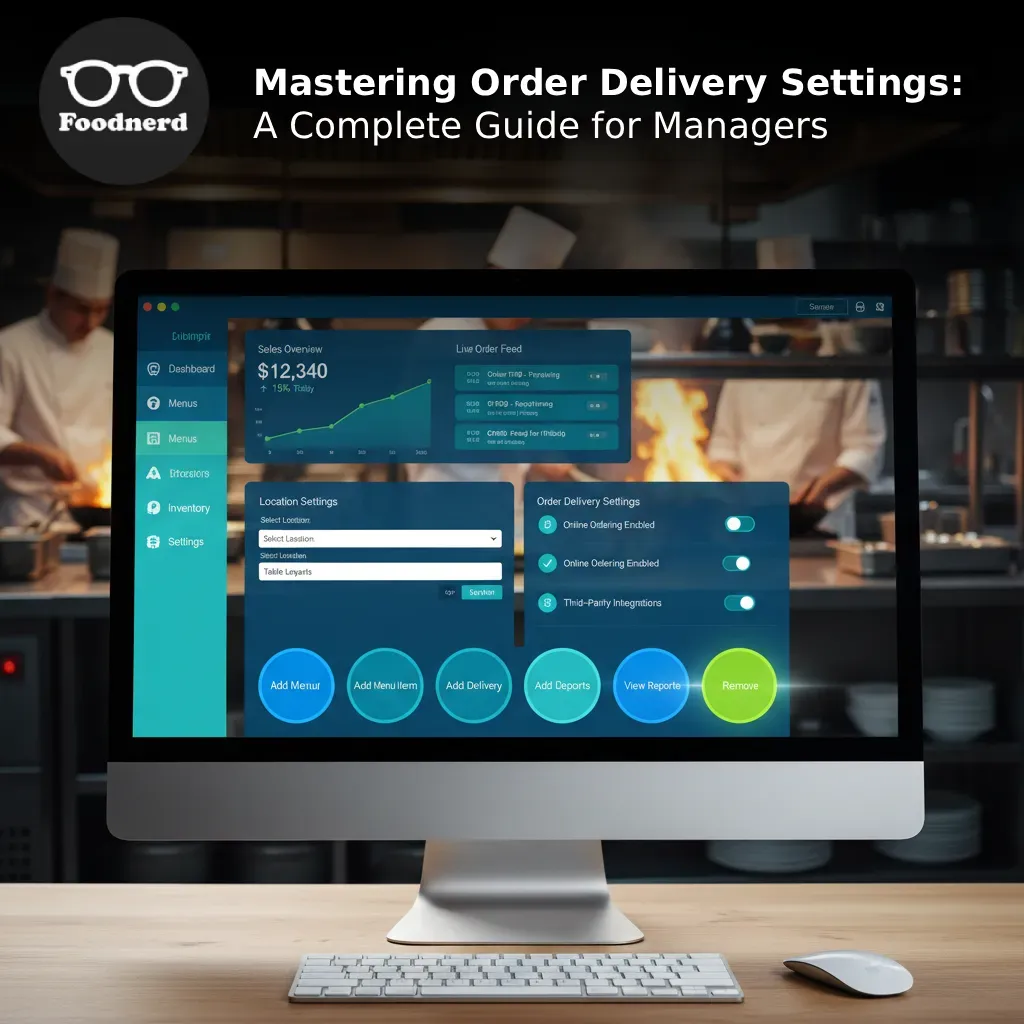
Foodnerd’s POS system empowers managers to take full control of these variables through the Order Delivery Settings. This feature allows you to configure multiple delivery options with distinct pricing, minimum order thresholds, and precise area definitions.
This guide provides a comprehensive walkthrough on how to add, configure, and document these settings within the Foodnerd Manager Dashboard. By following these steps, you can ensure operational clarity, maintain brand consistency across locations, and drive profitability through smarter delivery management.
Accessing Your Order Delivery Settings
To begin configuring your delivery parameters, you need to access the specific location settings within the manager portal.
- 1. Log in to your Manager Dashboard.
- 2. Navigate to Location Settings.
- 3. Select the "Order Delivery Settings" option from the popup or modal window.
For managers handling multiple locations, you can also use the direct link format for quick access: https://www.foodnerdpos.com/manager/locations/[location-slug].
Once open, you will see a modal displaying any existing delivery options. To begin a new configuration, click the "Add Delivery" button.
Configuring the Core Fields
Every delivery option requires specific basic information to function correctly. These fields determine how the option appears to the customer and how the system handles the financials.
Delivery Title
The Delivery Title is the name your customers will see during checkout. It needs to be clear, descriptive, and aligned with your marketing strategy.
- - Best Practice: Avoid internal codes. Use names that indicate service levels, such as "Standard Delivery," "Express Delivery," or "Free Delivery Over $50."
- - Documentation Note: Record the exact title used so customer service staff know exactly what the customer selected.
Tax Category
You must assign a Tax Category to every delivery fee to ensure compliance and accurate accounting.
- - Action: Select the appropriate category from the dropdown menu (e.g., "Standard Tax").
- - Documentation Note: Note which tax category is applied to delivery fees for audit purposes.
Pricing and Minimums
This section is where you implement your profitability strategy.
- - Minimum Delivery Amount: This sets the floor for orders. Enter 0.00 for no minimum, or a specific amount like 25.00 to ensure the order value justifies the delivery cost.
- - Delivery Price: This is the fee charged to the customer. Enter 0.00 for free delivery, or a set fee like 5.00.
- Strategic Example: You might create a "VIP Free Delivery" option where the Delivery Price is $0.00, but the Minimum Delivery Amount is $50.00. This incentivizes higher check averages.
Defining Your Delivery Areas
Foodnerd offers four distinct methods to define where you deliver. These methods are mutually exclusive—selecting one will clear the others—so choose the method that best fits your local geography and operational capabilities.
1. Geo Polygons
This method offers the highest precision. It allows you to draw custom shapes on a map, which is ideal for irregular boundaries, such as avoiding a river or covering a specific neighborhood that doesn't align with zip codes.
- - How to use: Select "Geo Polygons" and input your GeoJSON polygon data or draw the area on the map interface.
- - Documentation: Describe the specific boundaries (e.g., "Bounded by Main St to the North and the River to the South").
2. Maximum Distance
This is the fastest method to set up and works well for locations in dense urban areas or for new launches where you want a simple radius.
- - How to use: Select "Max Distance," enter a numeric value (e.g., 5), and choose the unit (km or mi).
- - Documentation: Simply record the radius and unit (e.g., "5 km radius from store").
3. Zip Codes
Zip codes provide excellent clarity for customers and marketing teams. If you send mailers to specific postal codes, matching your delivery zones to those codes ensures consistency.
- - How to use: Select "Zip Codes" and enter them as a comma-separated list (e.g., "10001, 10002") or ranges ("1000-1005").
- - Documentation: List every zip code included to resolve customer queries quickly (e.g., "We deliver to 10001 but not 10002").
4. Service Areas
For chains managing multiple locations, "Service Areas" allow you to use pre-defined zones created in the system. This ensures that multiple branches aren't cannibalizing each other's territories.
- - How to use: Search and select from existing Service Areas in the dropdown.
- - Documentation: Note the name of the Service Area package used.
Advanced Setup: Multiple Delivery Options
You are not limited to a single delivery rule. You can click "Add Delivery" multiple times to layer different options. This flexibility allows for dynamic pricing strategies.
Common Multi-Option Strategies:
- 1. Tiered Pricing: "Standard Delivery" ($5 fee) vs. "Express Delivery" ($15 fee).
- 2. Incentivized Thresholds: "Standard Delivery" ($5 fee, $0 min) vs. "Free Delivery" ($0 fee, $50 min).
- 3. Zone-Based Pricing: "Local Delivery" ($3 fee for 2km radius) vs. "Extended Delivery" ($8 fee for 10km radius).
Remember, each option functions independently. If you remove an option using the "Remove" button, it is deleted from the form immediately.
Saving and Documenting Your Configuration
Once you have configured your titles, prices, and areas, click "Update" or "Submit" to save all options simultaneously. The system will validate that all required fields are filled and that numeric values are valid.
Why You Must Document These Settings
Successfully configuring the system is only half the battle. Maintaining external documentation of these settings is vital for operational continuity.
1. Operational Clarity:
When a customer calls asking, "Why is my delivery fee $10?" your staff needs to know the answer without digging into the backend settings. Documenting that "Extended Area > 10km = $10" empowers your team to answer confidently.
2. Pricing Strategy History:
If you change your minimum order from $20 to $25, you need a record of when that change happened and why. This helps you analyze if the change affected order volume or profitability later on.
3. Multi-Location Consistency:
For franchise owners, documentation ensures that "Standard Delivery" means the same thing in the downtown branch as it does in the suburban branch, protecting your brand reputation.
How to Document:
For every delivery option you create, we recommend maintaining a log that includes:
- - Basic Info: Exact title, prices, and tax category.
- - Area Definition: The specific method and values used (e.g., list of zip codes).
- - Business Context: Why this option exists (e.g., "Holiday promotion," "Competitor matching").
- - Change History: Who changed it, when, and the reason for the update.
Best Practices for Success
- - Test Before Launch: Before announcing a new delivery zone, verify the settings are active and calculating correctly in the POS.
- - Coordinate with Marketing: Ensure your flyers and website banners match the "Minimum Order" and "Delivery Fees" you have configured.
- - Regular Reviews: Delivery economics change. Review your settings quarterly. Is gas more expensive? Should you increase fees? Is the "Free Delivery" threshold too low? Use your Foodnerd reporting to make data-driven adjustments.
By leveraging the flexibility of Foodnerd’s Order Delivery Settings, you can create a delivery strategy that optimizes for both customer satisfaction and operational efficiency. Take the time to configure these settings precisely, document them thoroughly, and watch your delivery operations run smoother than ever.
Recent Blogs
Foodpanda Integration for Pakistan: Streamline Orders with Foodnerd POS
Managing online food orders can feel overwhelming when delivery platforms operate separately from your restaurant's main system. Orders come through different channels, inventory tracking becomes m...
Never Miss an Order Again: Ring Central Integration with Foodnerd
Introduction In the high-pressure environment of a busy restaurant kitchen, every second counts. Your staff is juggling dine-in customers, food preparation, and inventory management. Amidst the cha...
Simplify Your Restaurant Management with These Essential Reports
Running a restaurant often feels like juggling a dozen plates while riding a unicycle. You have inventory to track, staff to manage, and customers to please. Amidst the daily chaos, digging through...

Write a Comment