- Mr Owner
- 2026/01/26
- 0 Comments
- 0 Likes
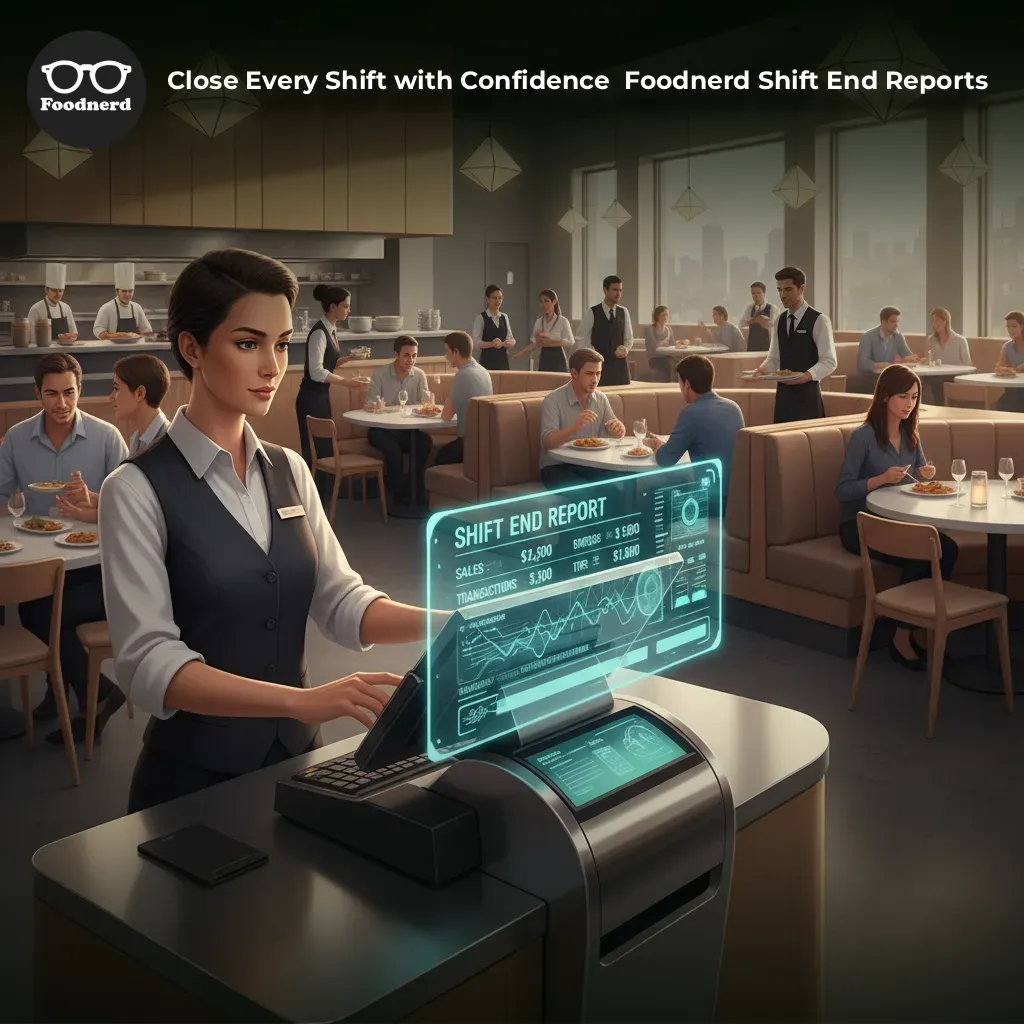
Closing time at a restaurant can feel like a race against the clock. The last customer leaves, the kitchen is cleaning up, and everyone is tired. You just want to go home. However, this is actually the most important part of the day for your business. This is when you count the money and make sure everything is correct.
We know that dealing with numbers and long lists of receipts can be scary or confusing. That is why the Foodnerd POS system has a special feature called the Shift End Report. Think of this report as a helpful friend who remembers everything that happened during the day so you do not have to.
This guide will explain exactly what the Shift End Report is and how to use it. We will walk you through it step by step, just like we are learning to walk, so you can feel confident and in control of your restaurant's finances.
What Is a Shift End Report?
Let us start with the basics. A Shift End Report is a summary document. It tells the story of one specific shift. It begins when a cashier logs in, which we call "checking in," and it finishes when they log out, or "check out."
This report collects every single thing that happened in between those two times. It counts every burger sold, every soda poured, and every dollar put into the cash drawer.
Why do you need it? It helps you answer very important questions:
- - Did we make a profit today?
- - Is there any money missing from the drawer?
- - Which food items were the most popular?
- - Did we pay for any supplies using cash from the register?
By using this report, you make sure that your money is safe and your business records are perfect.
How to Find and Create the Report
Accessing this report is very simple. You do not need to be a computer expert to do it.
Step 1: Finish Your Orders
Before you can close the shift, you must make sure all the current orders are done. The system wants to make sure it counts everything, so finish up any open tables or delivery orders first.
Step 2: Click End Shift
Go to your main dashboard on the Foodnerd POS. Look for a button that says "End Shift" or "Shift End." Click it gently.
Step 3: Let the System Work
Once you click that button, the system does all the hard math for you. It automatically calculates the sales, taxes, and cash totals. A window will pop up showing you the report. You can look at it on the screen before you print it or save it.
Reading Your Report: A Simple Breakdown
The report has different sections. Each section tells you about a different part of your business. Let us look at them one by one so you understand exactly what they mean.
The Header Section
This is the top part of the report. It is like the name tag for the shift. It tells you the name of your restaurant and the phone number. It also shows the "Check In Time" and "Check Out Time" so you know exactly how many hours the shift lasted. Most importantly, it lists the "Cashier Name." This tells you who was responsible for the money during this time.
The Summary Section
This is the big picture view. If you only have one minute to look at the report, look here. It shows you the "Total Sales," which is all the money you made. It separates the tax, the tips (gratuity), and any discounts you gave to customers. This gives you a quick health check of the shift performance.
Payment Methods
This section answers the question: How did customers pay? It separates the money into "Cash Payments" and "Card Payments." This is very important because the cash payments must match the physical money in your drawer. The card payments go directly to the bank, so you do not need to count them by hand.
Item and Menu Sales
Do you want to know what your customers loved eating today? This section lists every item you sold. It will show you the "Item Name" and the "Quantity Sold." You might see that you sold fifty burgers but only two salads. This information helps you decide what ingredients to buy for tomorrow. It also groups items by menu categories, showing you if breakfast, lunch, or dinner was the busiest time.
The Expenses Section
Sometimes, you need to take cash out of the drawer to buy something for the restaurant, like extra milk or cleaning supplies. This is called an expense. The report lists every time this happened. It shows the description of what was bought and how much it cost. This ensures you know where every penny went, even if it is not in the drawer anymore.
Watching Out for Mistakes
There are three special sections in the report that help you stop theft and fix mistakes. As a manager, you should look at these closely.
1. Void Entries
A "void" happens when a cashier deletes an item from an order. Sometimes this is a simple mistake. However, if you see a lot of voids, it might mean someone is trying to give away free food. The report shows you who voided the item and the reason why.
2. Rejected Orders
These are orders that the kitchen could not make. Maybe you ran out of ingredients. The report lists these so you can understand why you lost that sale and fix the problem for next time.
3. Returned Orders
This shows orders that customers brought back. Checking this helps you understand if customers are unhappy with the food quality or service.
Cash Management: Counting the Money
This is the most critical step for financial safety. This section helps you "reconcile" the cash drawer. Reconciliation is just a fancy word for making sure the physical money matches the computer numbers.
The report shows you the Opening Cash Balance, which is the money you started with. It adds the cash from sales and subtracts any expenses. The result is the Expected Cash.
You then count the actual bills and coins in the drawer. If the money you count matches the Expected Cash on the report, you did a perfect job! If there is a difference, the report will highlight it so you can investigate.
Customizing and Sharing Your Report
One of the best things about the Foodnerd Shift End Report is that you can change how it looks. You might not need to see every single detail every day.
You can use simple toggle switches to turn sections on or off. If you only want to see the Summary and Cash Management, you can hide the other parts. The system saves your preferences for next time.
Once you are happy with the report, you have three choices:
- 1. Print It: You can print a paper copy on your receipt printer to keep in a file.
- 2. Save as PDF: You can download a digital file to save on your computer.
- 3. Email It: If you are a manager working from home, your staff can click "End Shift and Send Email." The report will come straight to your inbox so you can review the day's performance from your couch.
Why This Matters for Your Business
Using the Shift End Report properly is the secret to a successful restaurant. It creates a habit of accuracy. When your staff knows that you review the report, they are more careful with cash and orders.
It also helps you make smarter decisions. By looking at the Item Sales, you know what food is popular. By looking at the Order Types, you can see if you need more delivery drivers or more waiters.
Documentation is key. By saving these reports, you build a history of your business. If you ever have a tax audit or a financial question in the future, you will have all the answers ready.
Start using the Shift End Report today. It is gentle, it is easy, and it gives you the power to run your restaurant with total confidence.
Recent Blogs
Kiosk Mode Explained: Transforming Restaurant Order-Taking
Running a restaurant means juggling a dozen things at once. Staff are taking orders, the kitchen is firing tickets, and customers are waiting. When the order-taking process slows down even slightly...

Foodpanda Integration for Pakistan: Streamline Orders with Foodnerd POS
Managing online food orders can feel overwhelming when delivery platforms operate separately from your restaurant's main system. Orders come through different channels, inventory tracking becomes m...
Never Miss an Order Again: Ring Central Integration with Foodnerd
Introduction In the high-pressure environment of a busy restaurant kitchen, every second counts. Your staff is juggling dine-in customers, food preparation, and inventory management. Amidst the cha...

Write a Comment