- Tasbeeha Ali
- 2026/03/09
- 0 Comments
- 0 Likes
Running a restaurant means juggling a dozen things at once. Staff are taking orders, the kitchen is firing tickets, and customers are waiting. When the order-taking process slows down even slightly, the ripple effect moves fast. That's where kiosk mode comes in a smart, streamlined approach to managing orders that's changing the way restaurants operate.
If you've heard the term "kiosk mode" but aren't quite sure what it means for your restaurant, this guide breaks it down clearly. You'll learn what kiosk mode is, how it works within a modern POS system, and why more restaurant operators are making it a core part of their setup.
What Is Kiosk Mode?
Kiosk mode is a dedicated operational setting within a POS order-taker app that simplifies and focuses the order-taking process for single-operator use. Rather than navigating a full POS interface, the system switches into a streamlined flow one that's purpose-built for speed, clarity, and efficiency.
Think of it as a focused version of your POS. All the essential features stay in place, but the interface adjusts to reduce complexity. Staff see only what they need, and the workflow moves customers through the process faster.
In Foodnerd's Order Taker App, kiosk mode is controlled through a persistent setting that activates a kiosk-specific experience across key parts of the app from the cart and checkout screens to location selection and order confirmation.
How Kiosk Mode Works in Practice
Once kiosk mode is enabled, the order-taking experience follows a clear, focused path:
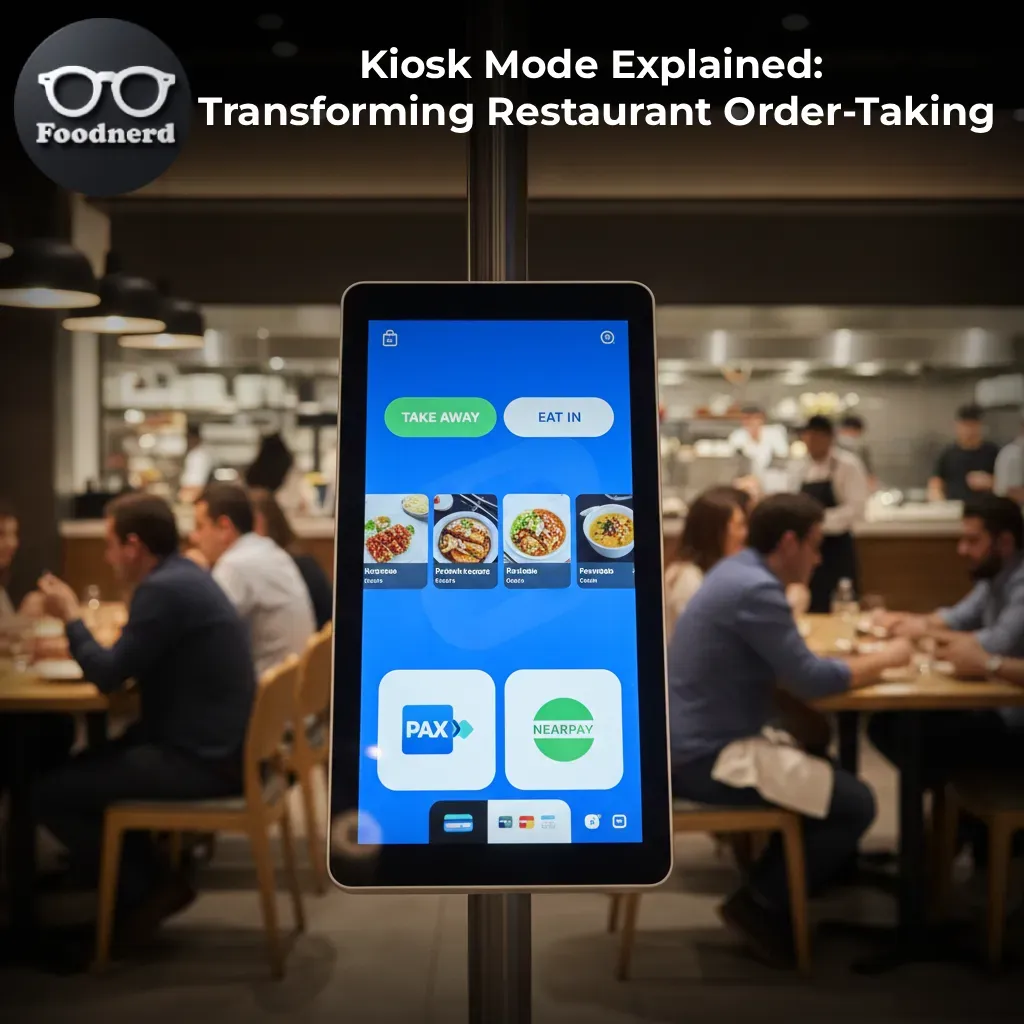
1. Order Type Selection: The operator starts by selecting how the customer wants to receive their order, take-away or eat-in. This simple choice sets the rest of the flow in motion.
2. Table Assignment (for Eat-In Orders): For dine-in customers, the operator can assign a table directly within the kiosk flow. No switching screens or navigating separate menus, it's all part of the same streamlined process.
3. Payment Method Selection Kiosk mode supports multiple payment options, including terminal-based digital payment methods. Foodnerd's implementation supports payment terminals like Pax, Dejavoo, and Nearpay, giving operators flexibility without adding friction.
4. Order Confirmation and Placement Once the order is confirmed, it moves through to the kitchen. After placement, the system lands on the KioskOrderSuccess screen, which also supports print actions for receipts or kitchen tickets.
The entire flow is designed to reduce clicks, minimize errors, and keep service moving, even during peak hours.
Key Features of Kiosk Mode
Simplified Navigation
Kiosk mode removes unnecessary interface elements. Headers, tabs, and navigation options adjust automatically, so staff aren't distracted by features that aren't relevant to the current task. The result is a cleaner, faster experience.
Kiosk-Specific Cart and Checkout Screens
When kiosk mode is active, the main cart resolves to a kiosk-specific cart view. Checkout screens also render differently, optimized for the kiosk flow rather than the standard POS layout. This keeps the operator focused and reduces the chance of mistakes during busy service periods.
Built-In Security with Verification
Sensitive actions, like accessing settings or logging out are protected behind a verification step when kiosk mode is active. This is a practical safeguard in environments where the device is shared or accessible in a semi-public space. Operators can't accidentally (or intentionally) exit the kiosk flow without proper authorization.
Dedicated Settings for Terminal Payments
Kiosk mode includes its own settings path for configuring payment terminals. Operators can enable and set up digital payment options directly within the kiosk settings, keeping configuration organized and separate from the broader POS setup.
Print Support After Order Placement
Once an order is placed, the system supports print actions on the success screen. This means receipts and kitchen tickets can be generated immediately, keeping the back-of-house informed and customers served quickly.
Why Restaurant Operators Are Choosing Kiosk Mode
Faster Service Times
Speed matters in restaurants. Kiosk mode removes steps from the order-taking process, helping staff get orders in faster. Fewer taps, fewer screens, fewer delays it adds up quickly across a busy service.
Reduced Training Time
A simplified interface is easier to learn. New staff can get up to speed on kiosk mode faster than a full POS setup, which is a real advantage in an industry with high staff turnover.
Fewer Errors
When the interface shows only what's relevant, operators make fewer mistakes. The structured flow, order type, table selection, payment, confirmation, guides the user through each step in order, reducing the risk of missed or incorrect information.
Better Control Over the Device
The verification layer adds an important layer of control. In fast-paced environments, an unsecured device can be a liability. Kiosk mode keeps the app locked to its intended function, protecting both the business and its data.
Flexibility Without Complexity
Kiosk mode supports multiple payment terminals and both dine-in and take-away workflows, all within the same streamlined interface. Operators get flexibility where it matters without the overhead of a complicated system.
Who Benefits Most from Kiosk Mode?
Kiosk mode is a strong fit for a range of restaurant setups:
- - Fast food chains and quick-service restaurants where speed and simplicity are non-negotiable
- - Cafés and coffee shops managing high volumes of take-away orders
- - Food trucks and pop-up operations where a single operator handles ordering and payment
- - Busy dine-in restaurants looking to speed up the order-taking process during peak hours
If your operation relies on one or two staff members handling orders efficiently without needing access to the full POS suite, kiosk mode gives you exactly that.
Setting Up Kiosk Mode: What You Need
Kiosk mode isn't a separate product. It's a built-in feature within Foodnerd's Order Taker App, activated through a persistent setting in the app's configuration. That said, getting the most out of it requires a few things to be in place:
- - Configured payment terminals: To use digital terminal-based payment options (Pax, Dejavoo, Nearpay), the relevant hardware needs to be set up and connected.
- - Printer settings: Print actions on the success screen depend on a configured printer. Make sure your receipt or kitchen printer is set up before enabling kiosk mode.
- - Staff familiarity with the flow: While kiosk mode is simple, a quick walkthrough with staff ensures everyone knows the order-type selection, table assignment, and payment steps before service begins.
Once these are in place, enabling kiosk mode is straightforward, and the operational benefits start immediately.
Frequently Asked Questions
1. Is kiosk mode a separate app or product?
No. Kiosk mode is a built-in feature of Foodnerd's Order Taker App. It's activated through a setting within the app and doesn't require any additional software or hardware beyond what's already configured in your POS setup.
2. Can kiosk mode handle both dine-in and take-away orders?
Yes. When kiosk mode is active, the operator selects the order type at the start of each transaction, either take-away or eat-in. For eat-in orders, table assignment is also handled within the same flow.
What payment methods does kiosk mode support?
Kiosk mode supports standard payment methods as well as terminal-based digital options, including Pax, Dejavoo, and Nearpay. Payment terminals need to be configured in the kiosk settings before use.
3. How does the verification feature work?
When kiosk mode is active, certain actions, like accessing settings or logging out are protected by a verification modal. This adds a layer of security, ensuring that the device stays locked to its intended kiosk function during service.
4. Can kiosk mode print receipts?
Yes. After an order is placed, the app lands on the KioskOrderSuccess screen, which includes print actions. Receipts and kitchen tickets can be generated from this screen, provided a printer is configured in your settings.
Make Every Order Count
Kiosk mode is a practical, powerful tool for any restaurant operator looking to tighten up their order-taking process. It cuts through complexity, speeds up service, and keeps the team focused on what matters, getting food to customers quickly and accurately.
Foodnerd's kiosk mode is built into the Order Taker App, which means there's no extra cost or complicated setup to access it. If you're already using Foodnerd POS and haven't explored kiosk mode yet, it's worth a closer look.
Ready to see it in action? Book a free demo with Foodnerd and discover how kiosk mode can fit into your restaurant's workflow.
Recent Blogs
Kiosk Mode Explained: Transforming Restaurant Order-Taking
Running a restaurant means juggling a dozen things at once. Staff are taking orders, the kitchen is firing tickets, and customers are waiting. When the order-taking process slows down even slightly...
Foodpanda Integration for Pakistan: Streamline Orders with Foodnerd POS
Managing online food orders can feel overwhelming when delivery platforms operate separately from your restaurant's main system. Orders come through different channels, inventory tracking becomes m...
Never Miss an Order Again: Ring Central Integration with Foodnerd
Introduction In the high-pressure environment of a busy restaurant kitchen, every second counts. Your staff is juggling dine-in customers, food preparation, and inventory management. Amidst the cha...

Write a Comment