- Abid Ali
- 2026/03/16
- 0 Comments
- 0 Likes
Opening a new restaurant location is one of the most exciting milestones for any food business owner. But once the excitement settles, reality sets in and that reality often includes hours of manually re entering every menu item, modifier, and price into your new branch's POS system.
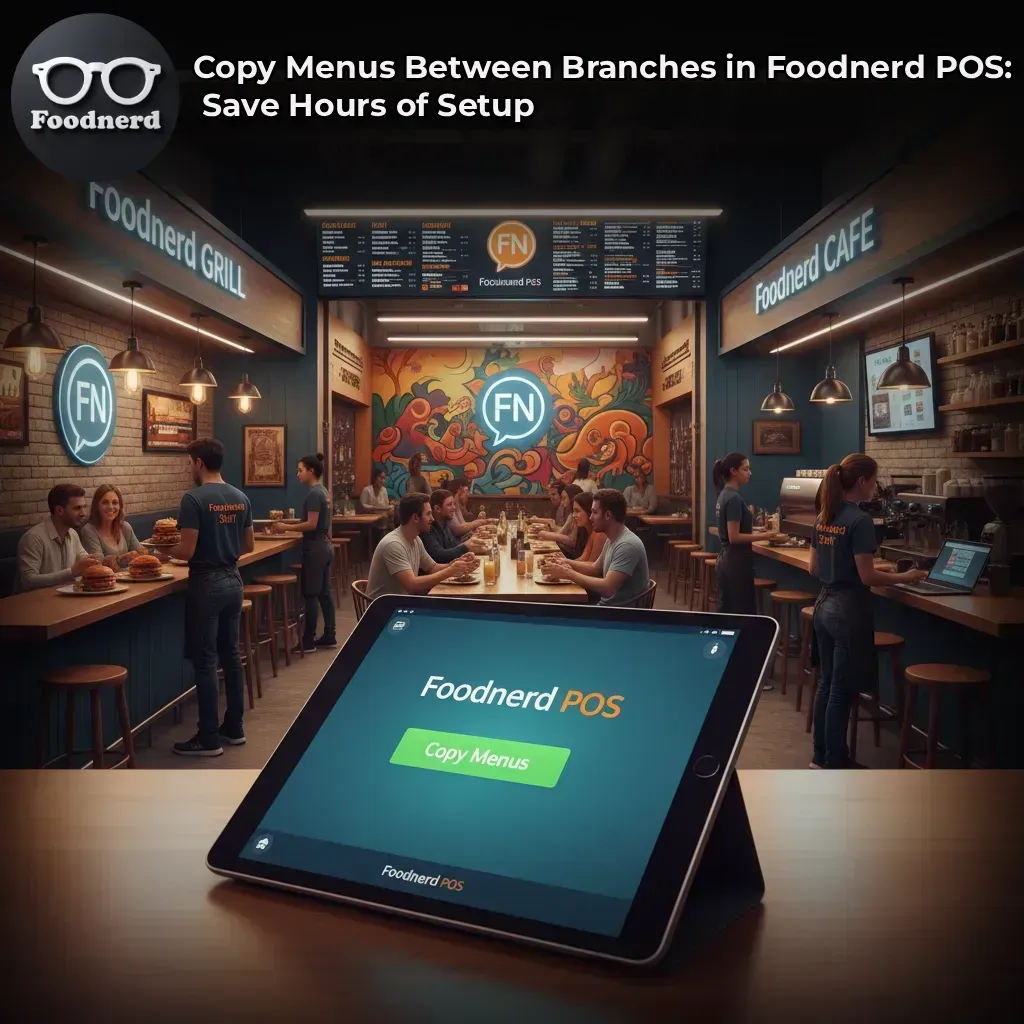
If you're using Foodnerd POS, there's a much faster way. The Copy Menus feature lets you duplicate your entire menu setup from one branch to another in just a few clicks. No re-entering items. No inconsistent pricing. No typos. Just a clean, consistent menu ready to go from day one.
This guide walks you through exactly how to use it and why it should be a standard part of your process every time you open a new location or roll out a menu update.
Why Rebuilding Menus from Scratch Costs You More Than Time:
It's tempting to think that setting up a new branch manually is no big deal. You've done it before. Your team knows the menu. How long could it really take?
Longer than you'd expect and the hidden costs go beyond time alone.
Every time a menu is rebuilt by hand, small errors creep in. One branch lists "Spicy Chicken Burger," another calls it "Spicy Burger (Large)." Prices drift. Modifiers get forgotten. These inconsistencies create confusion for staff and customers alike, and they chip away at the brand consistency that multi-location restaurants depend on.
Copying menus in Foodnerd POS eliminates that risk entirely. One branch serves as your master template, and every other location gets an exact match items, options, modifiers, and structure all included.
How to Copy Menus Between Branches in Foodnerd POS:
The process is straightforward. Here's a step by step breakdown.
Step 1: Open Your Source Branch
Log in to Foodnerd POS and navigate to the branch that already has the menus you want to use. This is your source branch the template everything else will be copied from.
Step 2: Click "Copy Menus"
On the branch page, locate the Copy Menus option in the quick actions panel (you'll find it alongside options like Quick Settings and Tax Settings). Click it to open the copy-menus screen.
Step 3: Select the Menus You Want to Copy
You'll see a list of all menus associated with your source branch. Select the ones you want to copy. Need more than one? Hold Ctrl (Windows) or Cmd (Mac) to select multiple menus at once. Everything inside those menus items, options, modifiers, and related setup will be included in the copy.
Step 4: Choose Your Target Branches
Next, select the branches where you want these menus to appear. You can choose one branch or several at the same time. The source branch is automatically excluded from this list, so there's no risk of overwriting your template.
Step 5: Hit Copy
Click Copy and let Foodnerd POS do the work. Once the process is complete, you'll receive a confirmation. One important note: if a target branch already has a menu with the same name, that menu will be skipped to prevent duplicates. If you need to replace an existing menu, rename or remove it first.
What Gets Copied And What You Can Still Customize:
When you copy a menu to another branch, Foodnerd POS transfers the key components that keep your locations aligned:
- * Menu name and structure — The same titles and organization across every branch
- * Menu items — Every item in the selected menus
- * Options and modifiers — Sizes, add-ons, and customizations
- * Ingredients and build — So recipes and prep stay consistent across kitchens
After copying, you're free to make branch specific adjustments. Need to reflect local pricing? Add a location specific item? You can do that without affecting the original source branch or any other location.
Tips for Multi Location Menu Management:
Getting the most out of this feature comes down to a few consistent habits.
Designate one master branch. Pick your main or most established location as your permanent template. Build and update menus there first, then copy to other branches. This removes any guesswork about which location has the "correct" version.
Copy before you launch. When opening a new location, set up its menus by copying from the master branch before the doors open. You'll only need to adjust what's genuinely different everything else is already in place.
Watch for duplicate menu names. If a target branch already has a menu with the same name as one you're trying to copy, that copy will be skipped. To replace it with a fresh version, rename or delete the existing menu first.
Do a quick review after copying. Run through the target branch to confirm items, prices, and modifiers look right. Catching a single misaligned item at this stage is far faster than troubleshooting it after launch.
The Bigger Picture: Consistency Across Every Location
For restaurant chains and growing food businesses, brand consistency isn't a nice to have it's a fundamental part of the customer experience. When a customer orders at your flagship location and then visits a new branch, they expect the same items, the same names, and the same quality.
Foodnerd POS's Copy Menus feature supports that consistency at the operational level. Combined with centralized management and real-time reporting, it gives multi location operators a reliable foundation for scaling without sacrificing the standards that built their reputation in the first place.
Whether you're opening your second location or your tenth, copying menus should be one of the first steps in your setup process not an afterthought.
Start Using Copy Menus the Right Way
The Copy Menus feature in Foodnerd POS is one of those tools that saves time every single time you use it. Open your best-configured branch, select the menus you need, choose your target locations, and click Copy. That's it.
New locations launch faster. Menu updates roll out consistently. And your team spends less time on data entry and more time focused on delivering great food and service.
Ready to streamline your multi location setup? Book a free Foodnerd POS demo and see how the platform helps growing restaurant brands manage operations efficiently across every branch.
Recent Blogs
How Foodnerd POS Manages Stock Location and Waste
How Foodnerd POS Manages Stock Location & WasteRunning a restaurant means keeping a constant eye on your ingredients. Order too much, and you're throwing money in the bin. Order too little, and...
Copy Menus Between Branches in Foodnerd POS: Save Hours of Setup
Opening a new restaurant location is one of the most exciting milestones for any food business owner. But once the excitement settles, reality sets in and that reality often includes hours of manua...
Kiosk Mode Explained: Transforming Restaurant Order-Taking
Running a restaurant means juggling a dozen things at once. Staff are taking orders, the kitchen is firing tickets, and customers are waiting. When the order-taking process slows down even slightly...

Write a Comment